

Imagine turning on your newly repaired LED display only to find a bright, mismatched patch right in the center. This common headache, known as "batch mismatch," frustrates system integrators and end-users worldwide. When you replace a faulty module, even minor differences in LED lamp batches, driver ICs, or calibration data can ruin the visual uniformity of your screen.
Maintaining a seamless video wall requires more than just swapping parts. In this technical guide, we will analyze why batch mismatch occurs, share a step-by-step troubleshooting workflow, and explain how smart hardware choices prevent these issues from the start.
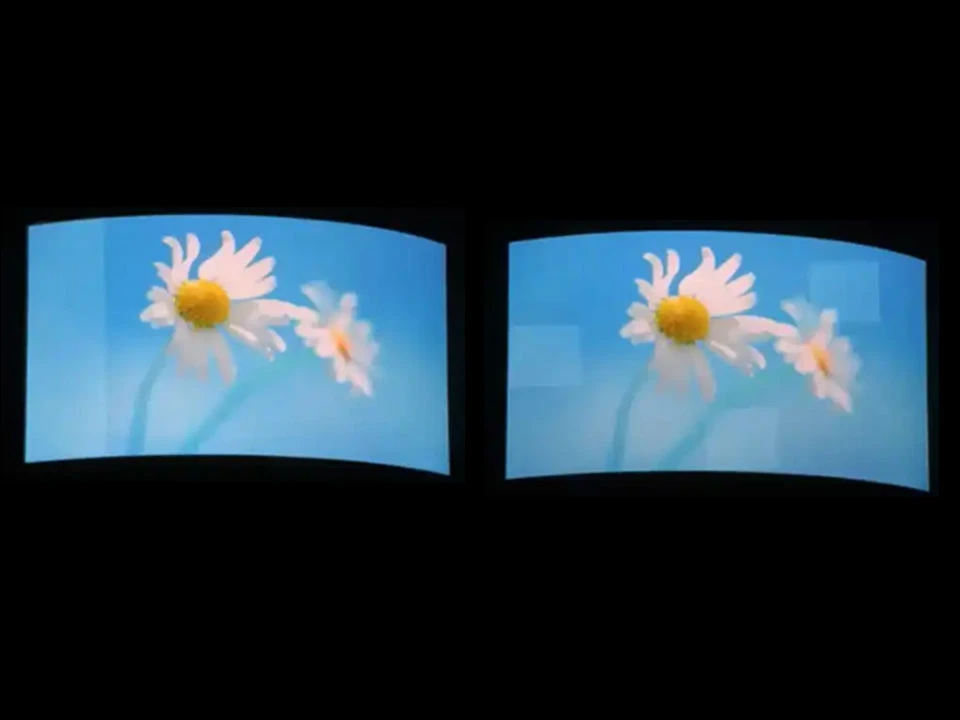
The Core Causes of LED Color and Brightness Inconsistency
To solve the mismatch puzzle, we must first understand why two seemingly identical modules display different colors or brightness levels.
1. Binning and LED Lamp Differences
LED manufacturers group diodes through a process called "binning." They sort lamps based on dominant wavelength (color) and luminous intensity (brightness). Even within the same manufacturing lot, slight variances exist. If your replacement module uses LED lamps from a different bin than the original wall, the human eye will immediately detect the border line.
2. Driver IC and Gray Scale Discrepancies
Different production runs of driver Integrated Circuits (ICs) can output slightly different constant currents. A tiny current variance shifts both the brightness and the gray scale performance of the pixels, especially in low-light environments.
3. Missing or De-synchronized Calibration Data
Modern high-quality LED displays rely on Pixel-by-Pixel Calibration (PWM/Chroma calibration). The control system stores unique calibration coefficients for every single pixel. If you install a new module without uploading the corresponding calibration coefficients, it will either run at raw, uncalibrated brightness (making it look too bright) or use incorrect coefficients.
Step-by-Step Troubleshooting for Module Mismatch
When you encounter a mismatched module during field maintenance, follow this structured diagnostic workflow to restore visual harmony.
Step 1: Verify and Re-sync Calibration Data
Before replacing hardware, check your control software (such as NovaLCT or Colorlight).
- Action: Ensure "Enable Calibration" is turned on. If the new module is too bright, the system might have lost its calibration coefficients.
- Fix: Locate the backup calibration files (usually provided by the manufacturer on a USB drive or cloud server) and upload the matching coefficients for the replaced cabinet coordinates.
Step 2: Perform Manual R/G/B Gain Adjustment
If you do not have the original calibration files, you can manually balance the module using the control software's coefficient adjustment tool.
- Action: Display a pure white test pattern on the screen.
- Fix: Select the specific mismatched area in the software and fine-tune the Red, Green, and Blue brightness coefficients (gains) until the replaced module blends with the surrounding pixels.
Step 3: Run Camera-Based Calibration
For large-scale mismatched zones or when mixing different modules, manual tuning is insufficient.
- Action: Set up a professional calibration camera or a high-resolution DSLR supported by your control system.
- Fix: Run a full-screen camera-based calibration. The software will automatically analyze the light output of each pixel and write new, balanced coefficients to the receiving cards.
Comparing Maintenance Solutions for Batch Consistency
To minimize downtime and avoid visual degradation, different display architectures offer distinct advantages. The table below compares common maintenance scenarios and their impact on batch consistency.
| Maintenance Feature | Front Maintenance (Magnet Module) | Rear Maintenance (Cabinet-based) | Common Cathode Energy-Saving |
|---|---|---|---|
| Replacement Speed | Extremely Fast (Under 1 minute) | Moderate to Slow (Requires rear access) | Fast (Uses front-accessible modules) |
| Batch Control Risk | Low (When keeping spare modules) | Moderate | Low (Runs cooler, reducing thermal color shifts) |
| Calibration Complexity | Low (Coefficients can be saved on module) | Moderate | Low |
| Thermal Color Drift | Low | Moderate | Minimal (Lower operating temperatures preserve color) |
How to Prevent Batch Mismatch During Procurement
The easiest way to resolve a batch mismatch is to prevent it during the purchase and planning stages. If you are preparing to buy or deploy an LED display, keep these three strategic recommendations in mind:
Order Sufficient Spare Modules (Spare Rate of 3%–5%): Always order extra modules from the exact same production run. Store them safely. If a module fails three years later, you can replace it with a twin module from the same bin.
Choose Smart Modules with On-Board Flash Storage: Modern high-end displays feature "smart modules" that store calibration coefficients directly on the module's flash memory. When you swap a module, the receiving card automatically reads the correct calibration coefficients from the new board.
Invest in Cool-Running Technology: LED color and brightness shift as temperatures rise (thermal drift). Opting for energy-efficient architectures like Common Cathode technology keeps the screen running significantly cooler, preventing localized color shifts across the display wall.
Conclusion and Next Steps
Achieving a flawless, long-lasting LED video wall requires a combination of proper maintenance workflows and smart hardware procurement. By maintaining a well-managed stock of same-batch spare modules and choosing displays designed for easy calibration synchronization, you can eliminate mismatch issues entirely.
Are you planning a new indoor or outdoor LED display project? Or do you need reliable technical support for your existing installations? Contact our technical engineering team today for expert guidance, premium front-maintenance display options, and professional calibration assistance.