

A video processor that will not show up in NovaLCT is one of the most common issues our customers report after setting up a new LED display system. In most cases the hardware is perfectly fine - the root cause sits in the physical connection or the network configuration of the laptop. The three methods below are listed in the order our engineers usually work through them, from the simplest to the most reliable.
Fix 1: Confirm The USB Link First
Start with the USB port on the control section of the processor. Connect it directly to your laptop or PC, then launch NovaLCT and check whether the device appears in the connection list.
USB problems are almost always cable-related rather than device-related. If the processor still does not appear, swap the cable for another one, then try a different USB port on the laptop. Avoid USB hubs and extension cables during diagnosis - they are a frequent cause of dropped enumeration.
Fix 2: Verify The Processor With An HDMI Cable
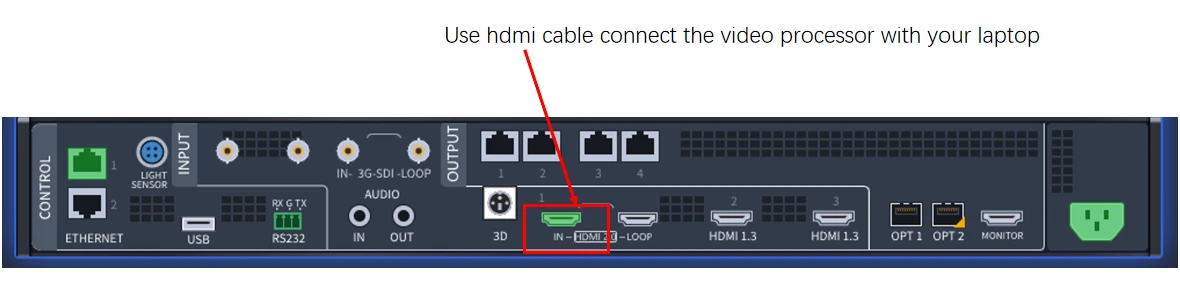
Before spending time on network settings, it helps to prove that the processor itself is alive and responding. Connect it to your laptop with an HDMI cable and confirm that the unit outputs a valid signal.
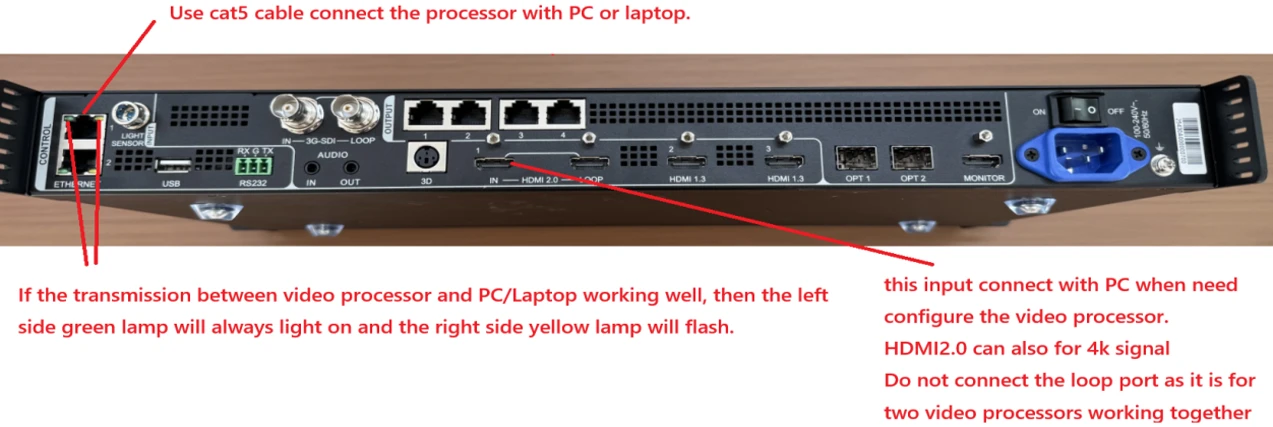
This step also tells you something about the unit's positioning: the HDMI 2.0 input supports 4K source signals, while the HDMI 1.3 ports are intended for standard sources. Two practical notes from the back panel -
- Do not use the loop port. The loop output is reserved for cascading two video processors, not for connecting a laptop.
- Watch the input indicator. Once the source is recognised, the input area on the panel lights up, which confirms the signal chain is working end to end.
If the processor responds to HDMI but not to USB, you are dealing with a port or driver issue rather than a dead unit.
Fix 3: Switch To A CAT5 Network Connection
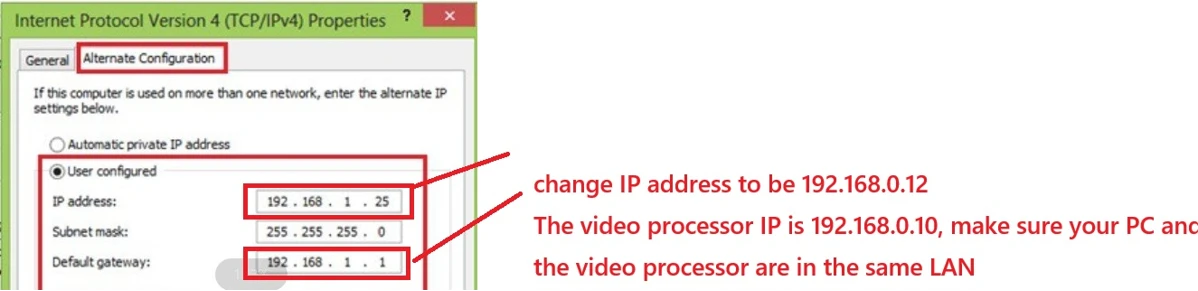
If the USB route keeps failing, the network route is the more dependable option. Connect the processor's Ethernet port to your laptop or PC with a CAT5 cable.
The processor ships with a fixed IP address of 192.168.0.10 . Your laptop needs to sit in the same LAN before NovaLCT can see the equipment. On Windows, open the IPv4 properties of your network adapter and set a user-configured address in the same range - for example:
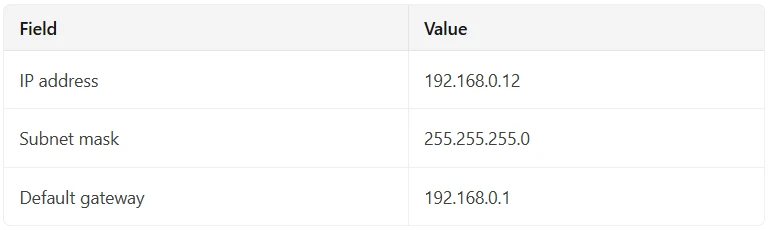
If your laptop normally runs on DHCP in an office network, use the Alternate Configuration tab instead of overwriting the main IP. Windows will then fall back to the static address only when no DHCP server is present, so you do not break your daily connection.
Confirm The Link Is Actually Alive
Once the cable is in place, check the Ethernet indicator next to the port on the processor. A steady green lamp with a flashing yellow lamp means data is travelling between the processor and the laptop correctly. If both lamps stay dark, the cable or the adapter is the problem - test another cable before troubleshooting software.
A Quick Order Of Operations
1. USB cable and USB port swap.
2. HDMI cable check to confirm the unit responds.
3. CAT5 connection with a matching IP address.
Most systems are recognised by NovaLCT at step one. Those that are not are nearly always resolved by step three. If you have worked through all three and the device is still missing, the next things to check are the NovaLCT version, the laptop's firewall, and whether the processor firmware needs an update.