

Keeping your video processor firmware up to date is one of the easiest ways to ensure stable performance and unlock the latest features for your LED display system. If your Nova VX1000PRO is still running on V1.3.1 or an earlier version, this guide will walk you through a safe upgrade to V1.4.1.
Before You Begin
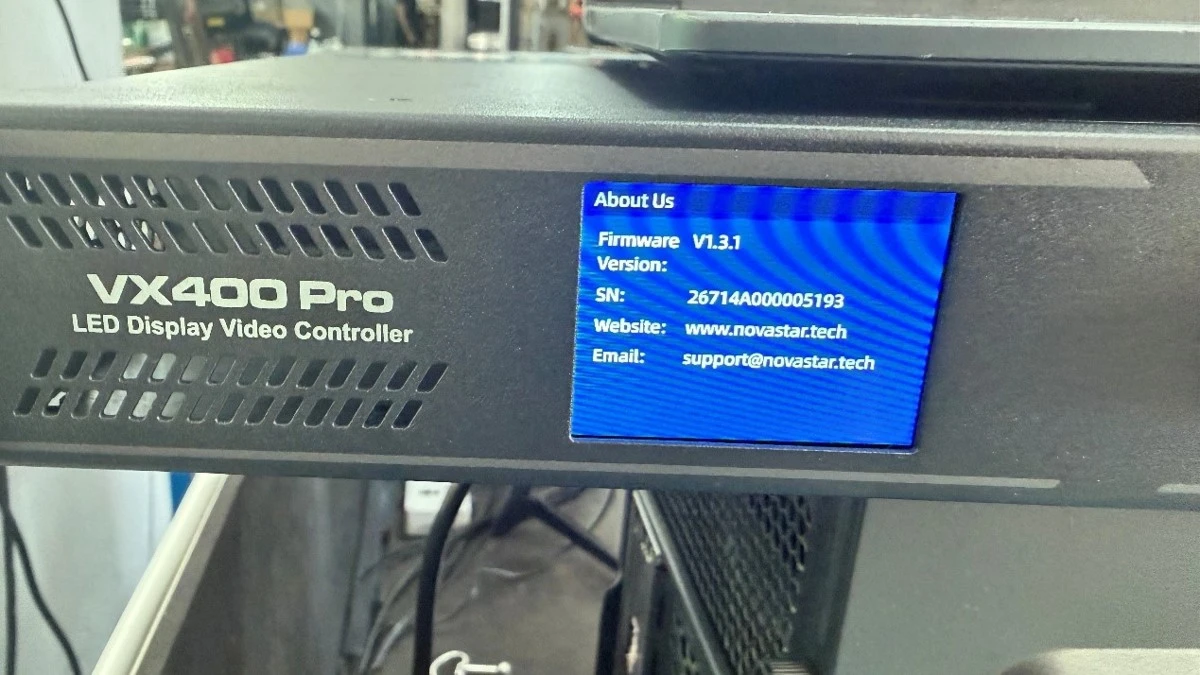
First, check your current firmware version. Navigate to the About Us menu on your VX1000PRO. If the version shown is V1.3.1 or earlier, an upgrade to V1.4.1 is required.
Next, prepare a USB flash drive. Unzip the upgrade package you received, locate the .img firmware file inside, and copy it onto the USB drive. Make sure the drive is formatted properly and contains only the upgrade file to avoid confusion during the process.
The 6-Step Upgrade Process
Step 1 - Connect the USB drive. Insert the USB flash drive containing the .img file into the USB 2.0 port on your VX1000PRO.
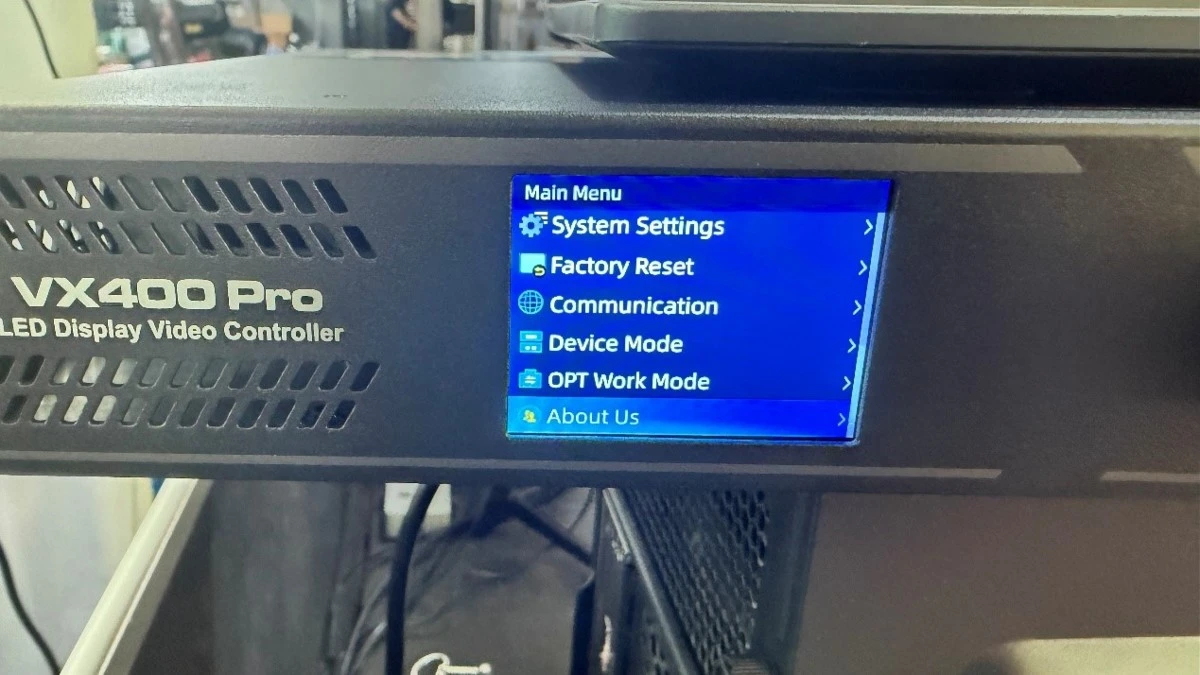
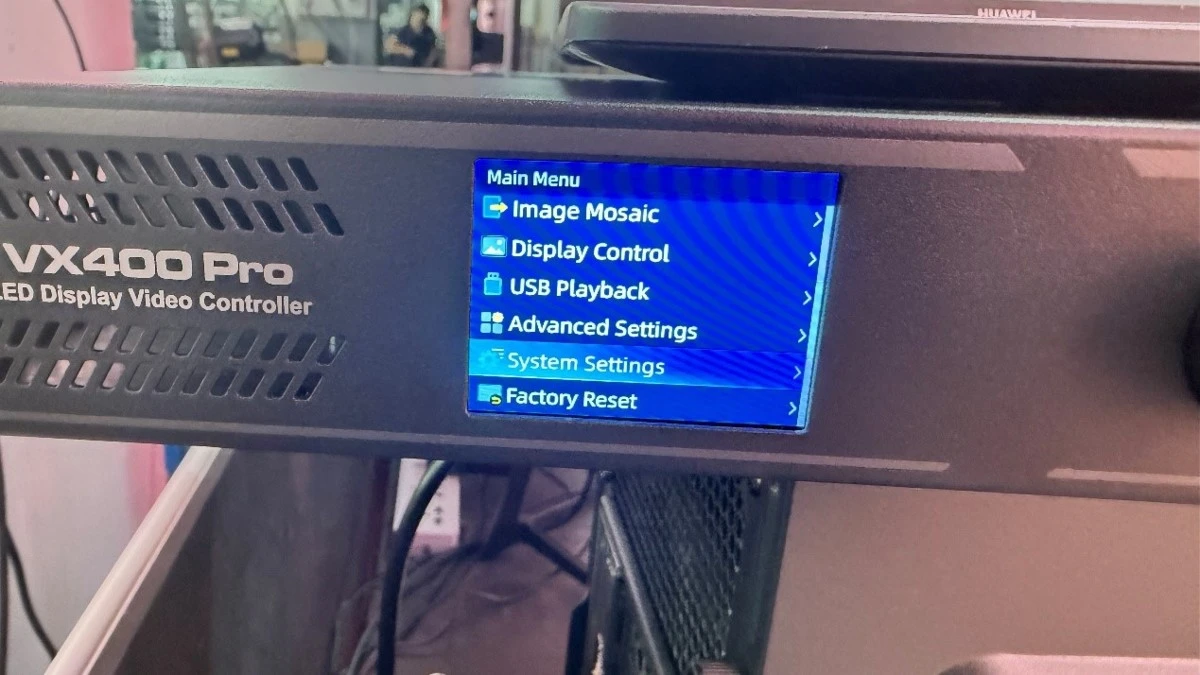
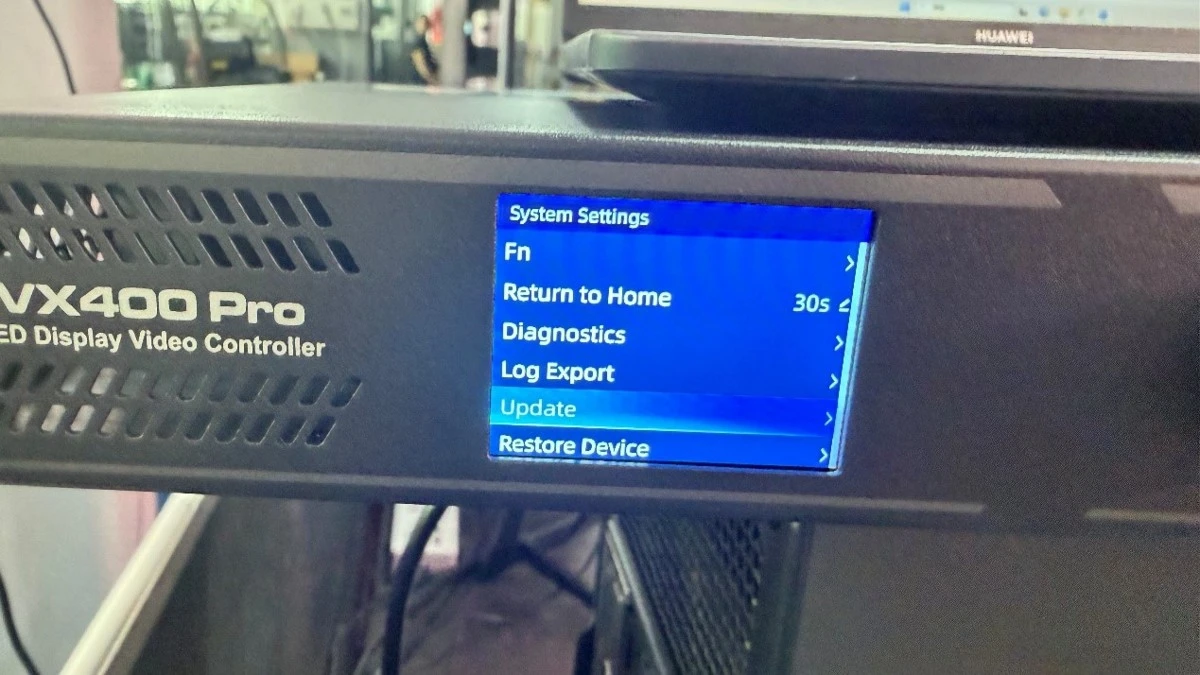
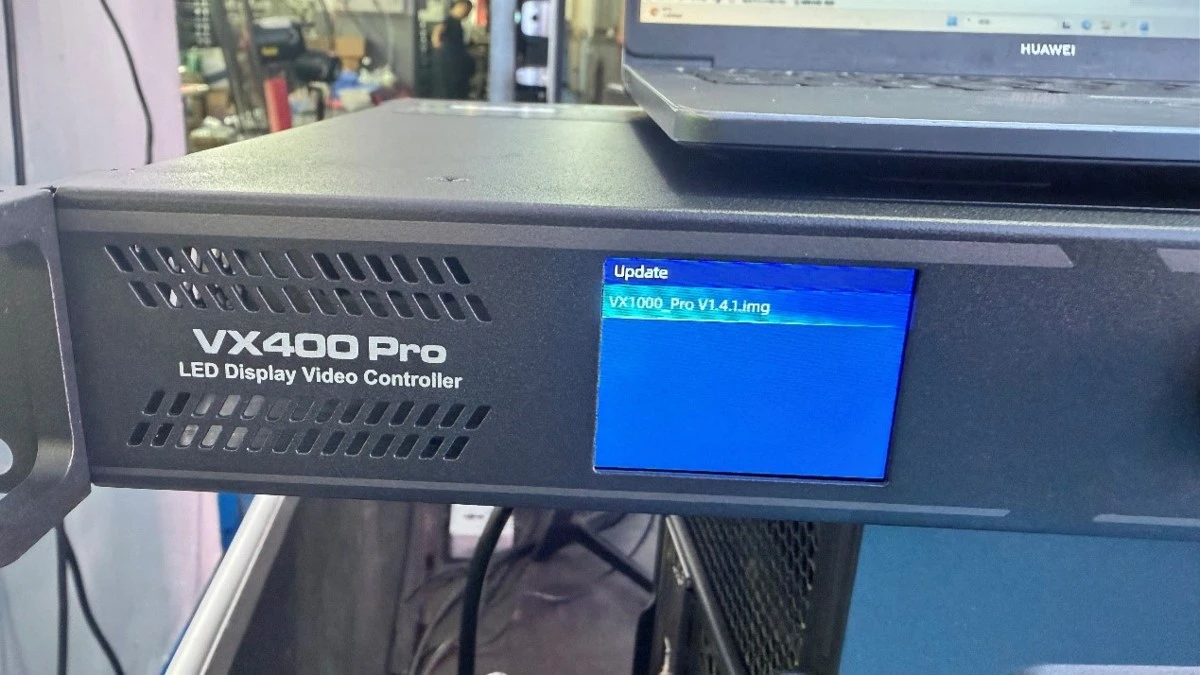
Step 2 - Enter the Update menu. On the device, go to System Settings → Update , then browse and select the corresponding .img upgrade file.

Step 3 - Start the upgrade and wait. Once the upgrade begins, do not perform any other operations on the device, and under no circumstances should you cut off the power supply. Interruptions during this stage may damage the system.
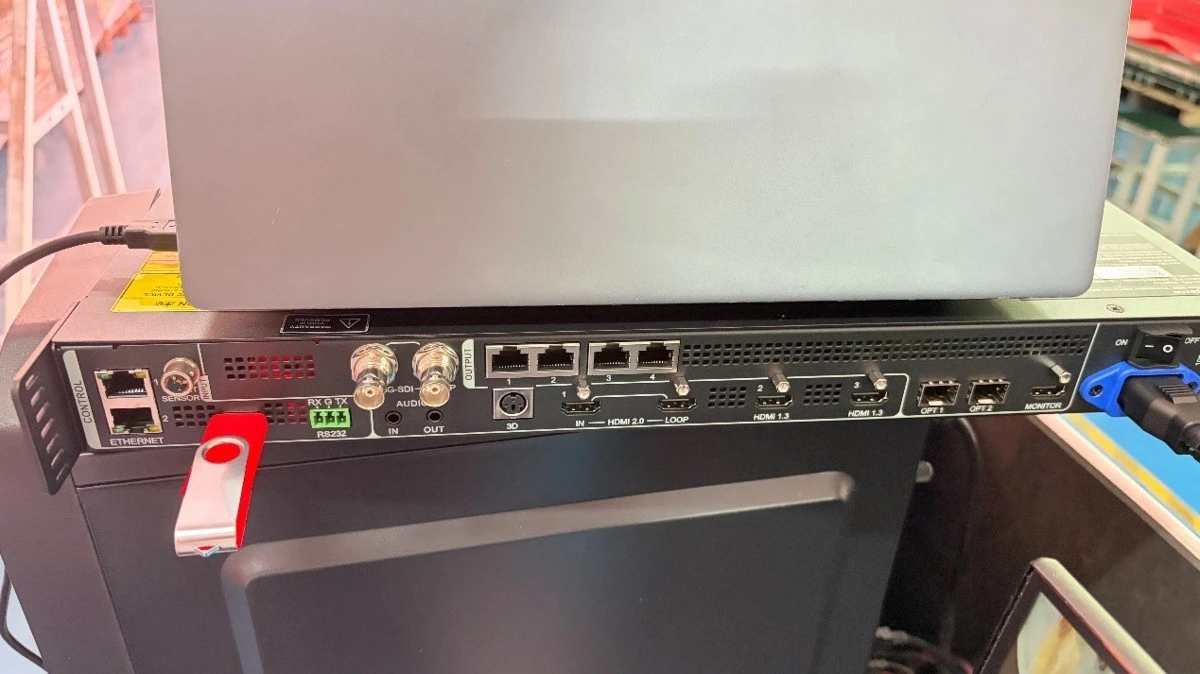
Step 4 - Allow automatic reboot. The VX1000PRO will reboot and run self-checks continuously throughout the upgrade. This is normal behavior - simply let the process complete on its own.
Step 5 - Verify the new version. After the upgrade finishes successfully, return to the About Us menu to confirm the firmware now displays V1.4.1.
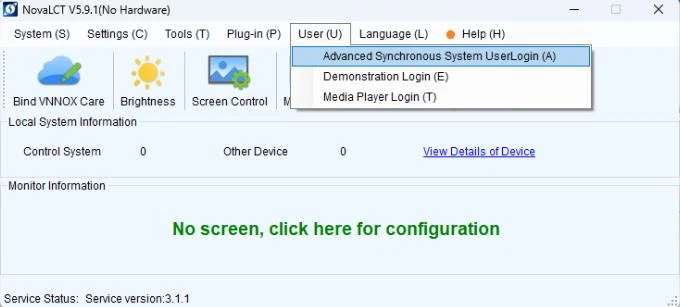
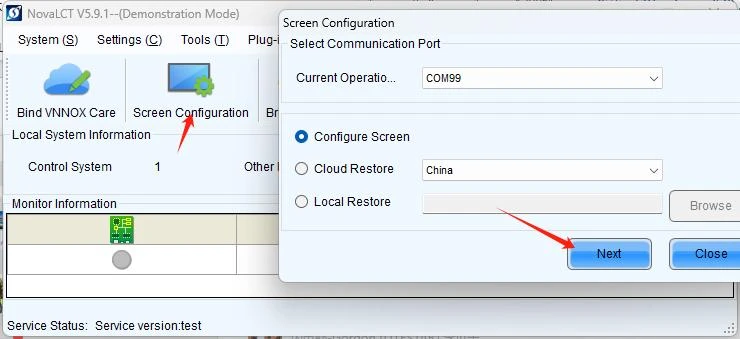
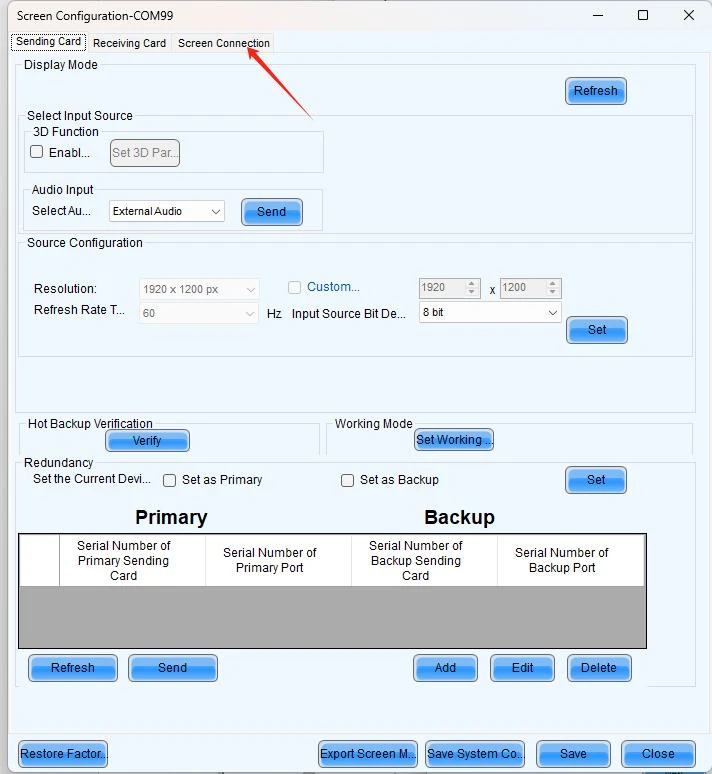
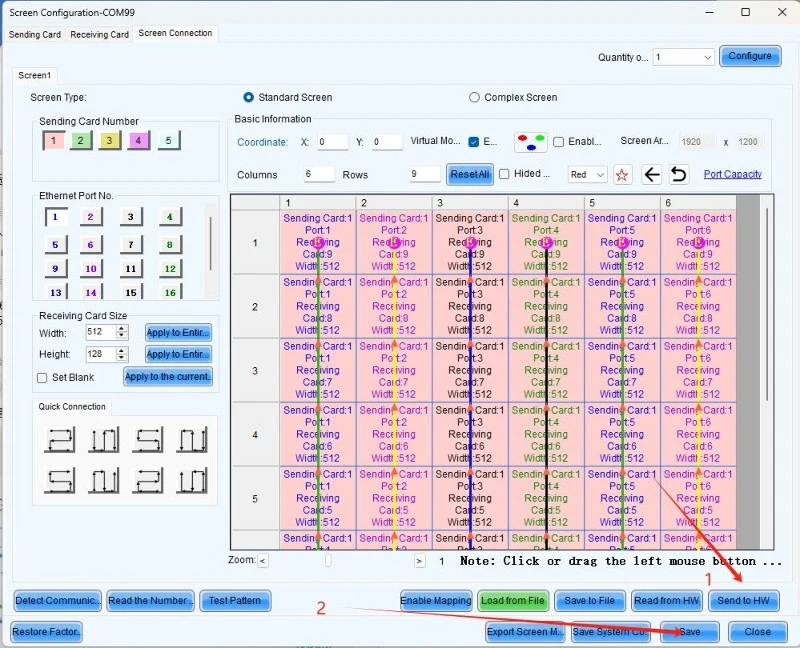
Step 6 - Re-send the screen connection file. This final step is essential. Open NovaLCT on your computer (the login password is " 666 "), and re-send the screen connection file to your LED display. Once you have confirmed the screen is displaying content correctly, click Save to lock in the configuration. Do not skip this step - failing to save will cause the settings to be lost.
Final Reminders
- Always use a reliable USB 2.0 flash drive for firmware transfers.
- Never disconnect power or press buttons mid-upgrade.
- Re-sending the screen connection file via NovaLCT after every firmware upgrade is mandatory, not optional.
Follow these six steps, and your VX1000PRO will be running the latest firmware with your LED display back online in minutes.